

Installing FileZilla#
Overview#
This guide goes over how to use FileZilla to transfer files between a Raspberry Pi and your computer.
This guide may also apply to other computers as well.
Installation#
Windows#
Click here to go to FileZilla’s download page. Download the setup.exe for 64bit x86:
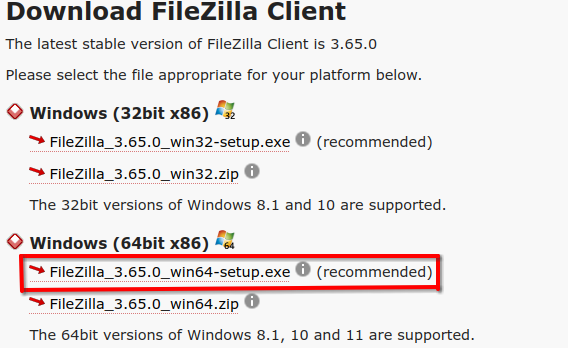
Run the installer and you’re good to go.
MacOS#
No idea. Feel free to figure it out and update this doc!
Linux#
Enter the following commands into your terminal by your distro:
Debian-based including Ubuntu#
sudo apt install filezilla
Arch-based#
sudo pacman -S filezilla
Other#
Refer to your distro’s guide on building/installing packages.
IP Configuration#
Open FileZilla. You will find the following boxes at the top of your screen:

You want to use the same information that you used in
Raspberry-Pi-SSH.md. It should look something like this:
When you press
Quickconnectit will automatically connect to the Raspberry Pi/other device and show it’s directory. This will allow you to download the testing.csvfiles from the Pi.